Changelog
Follow up on the latest improvements and updates.
RSS
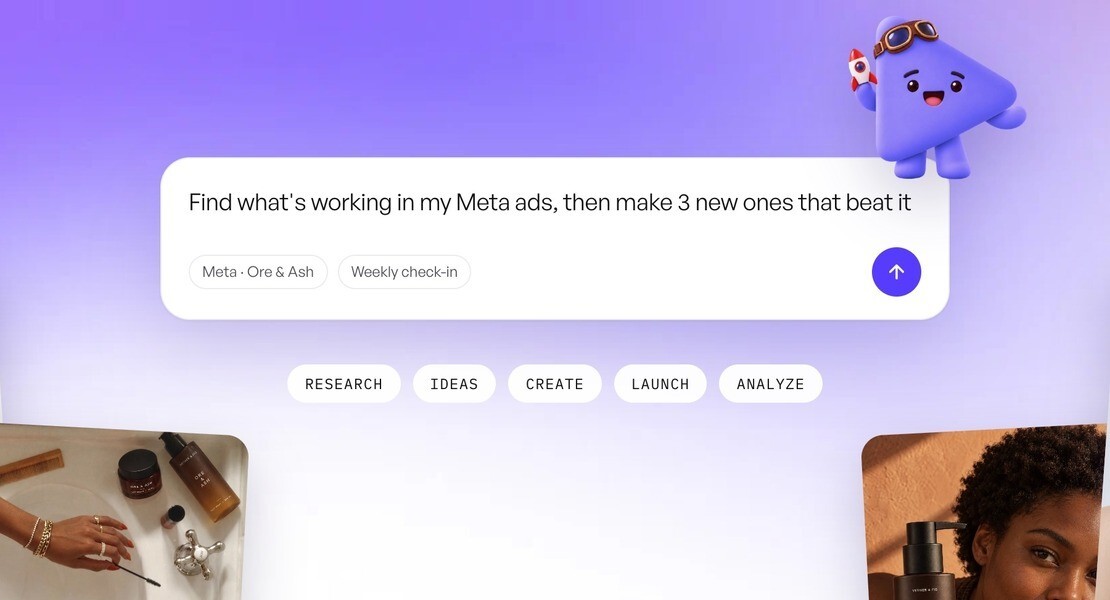
Creating and improving ads takes constant attention. Max helps you move from idea to launch—and keeps learning from the results—while you stay in control.
🎬
Create ads together:
Share a product URL or brief, and Max drafts video ad options in minutes using Creatify’s video models. Review, tweak, and choose the directions you like.🚀
Get campaigns ready to launch:
Max prepares campaigns for Meta, TikTok, Google, and Snap, including budgets, audiences, and copy. Nothing launches without your approval.📈
Keep improving performance:
Max checks results every day, shows what is working, and suggests practical next steps—new variations, pauses, or budget changes.💬
Work where your team works:
Use Max in Creatify and Slack. It remembers your brand and past performance, explains its recommendations in plain English, and leaves every final decision to you.Open Ad Agent to meet Max and start your next campaign.
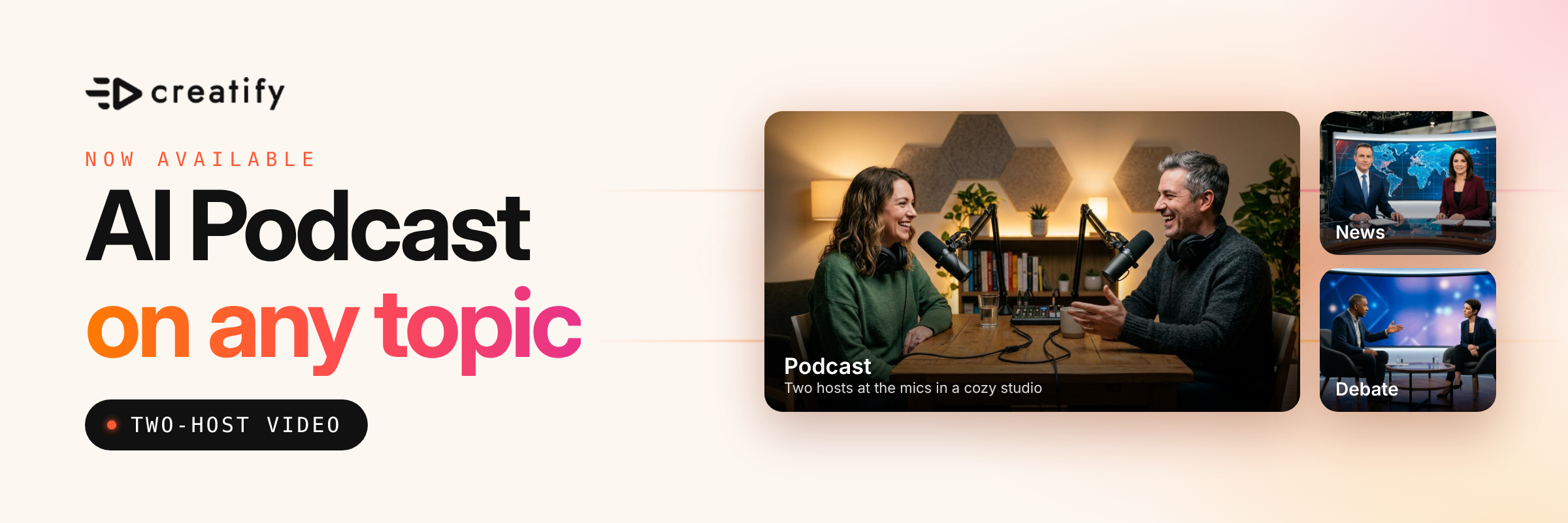
Have a topic, link, product, or conversation worth sharing? Turn it into a polished two-host video podcast with AI Podcast.
🎙️
Start from what you already have:
Use a prompt, link, product, script, document, or recording as your episode source.👥
Make the conversation your own:
Choose your hosts, voices, visual setting, aspect ratio, and episode length before you create.🎬
Go from idea to episode:
AI Podcast builds the brief and hands it to Ad Agent so you can turn your source material into a video conversation.Open AI Podcast, choose a format, and create your first episode.
Gemini Omni Flash 1.2 is now available in Creatify, with more ways to guide a video from its first frame to its final edit.
🎞️
Set the beginning and end:
Create videos from text, a still image, or defined first and last frames.🧩
Keep your references in view:
Use up to 10 reference images and 3 reference videos to guide subjects, motion, style, and sound.✂️
Refine without starting over:
Make natural-language edits while preserving scene coherence, with videos up to 15 seconds and 4K output.Try Gemini Omni Flash 1.2 in Model Playground.
Need a fresh product visual or a new variation of an ad that already works? Seedream 5.5 is now available in Creatify’s Model Playground. Start with a text prompt or upload an image to edit.
📸
Create realistic product visuals.
Describe the scene, lighting, and style you want for your next product shot or ad concept.🎨
Refine an existing image.
Change the background or adjust specific details while keeping the rest of the image more consistent across edits.🖼️
Choose 1K or 2K output.
Use 1K to explore concepts or 2K when you need more detail in the final creative.Open Model Playground and select
Seedream 5.5
under Text to Image
or Image to Image
. Available on Starter plans and above
.
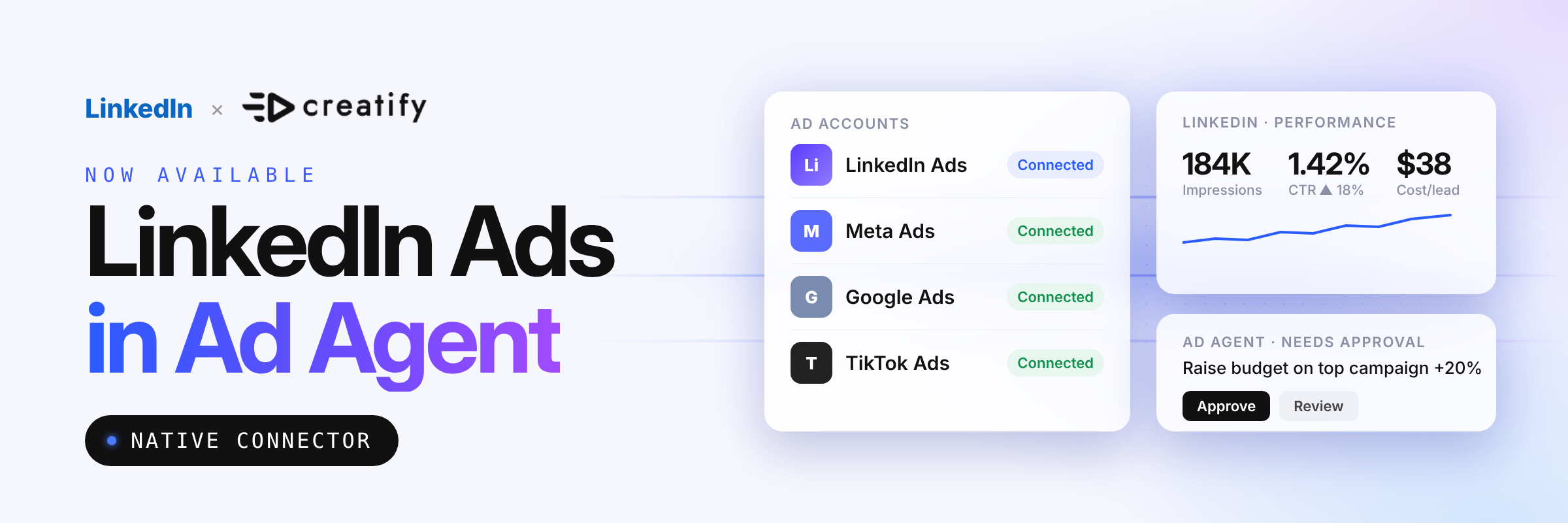
Connect your LinkedIn Ads account to bring campaign context into the place where you plan, analyze, and act on your advertising work.
🔗
Connect the accounts you manage:
Add LinkedIn Ads accounts to your workspace and organize them alongside your other ad platforms.📊
Keep campaign context close:
Give Max access to the LinkedIn Ads account context it needs when helping you review performance and plan next steps.✅
Act with approval:
Use the existing approval flow when you’re ready to make supported LinkedIn Ads changes through Ad Agent.Connect LinkedIn Ads from your account connections to get started.
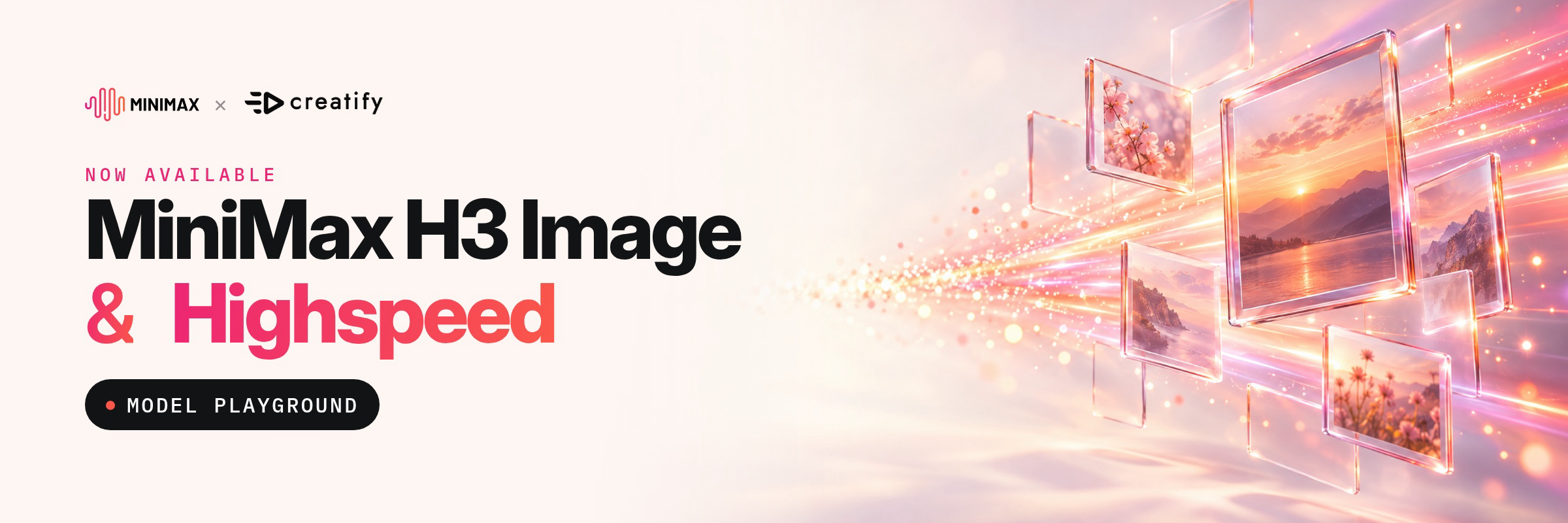
MiniMax H3 Image is now available in Creatify, giving you more control when generating or refining visuals for your next campaign.
🎨
Create or edit with one model:
Move from a text prompt to a polished visual, or bring an existing image into your workflow for an edit.🖼️
Use more visual context:
Guide your result with up to 16 reference images for subjects, style, and layout.⚡
Choose quality or speed:
Pick MiniMax H3 Image for flexible, high-resolution output up to 4K, or use the Highspeed variant when you need to move faster.Try MiniMax H3 Image in Text to Image or Image to Image.
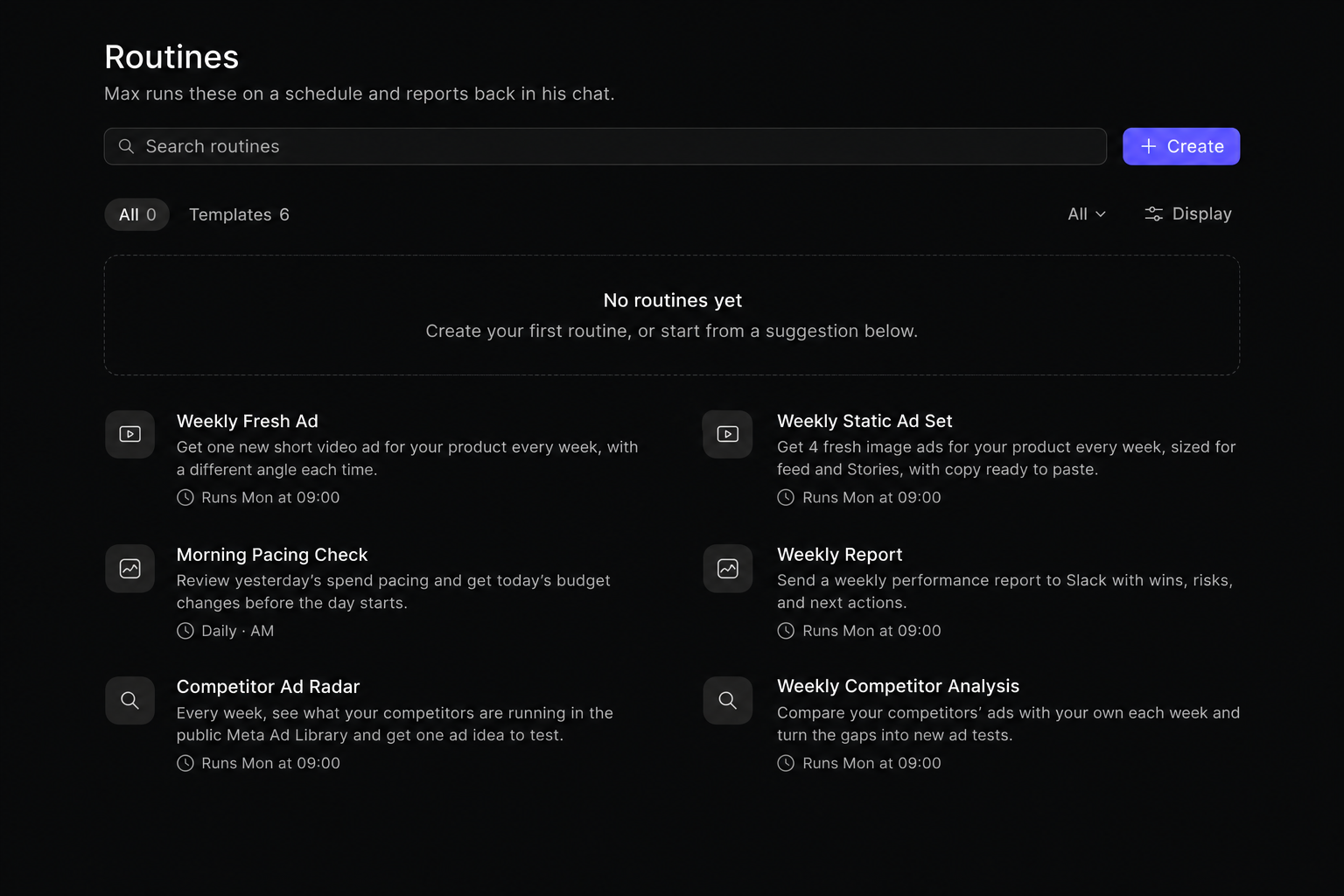
Want Max to keep working while you focus on what’s next? Set up Routines to run recurring ad tasks on a schedule and report back in your chat.
⏰
Schedule work that matters:
Start with templates for fresh ads, pacing checks, weekly reports, competitor research, and more.📈
Stay on top of performance:
Have Max review your campaigns regularly and surface the changes, risks, and opportunities worth acting on.💬
Keep every result in context:
Each Routine runs through Max, so its findings and next steps stay in the same place as your ad work.Create your first Routine from a template, or build one around the work you need done.
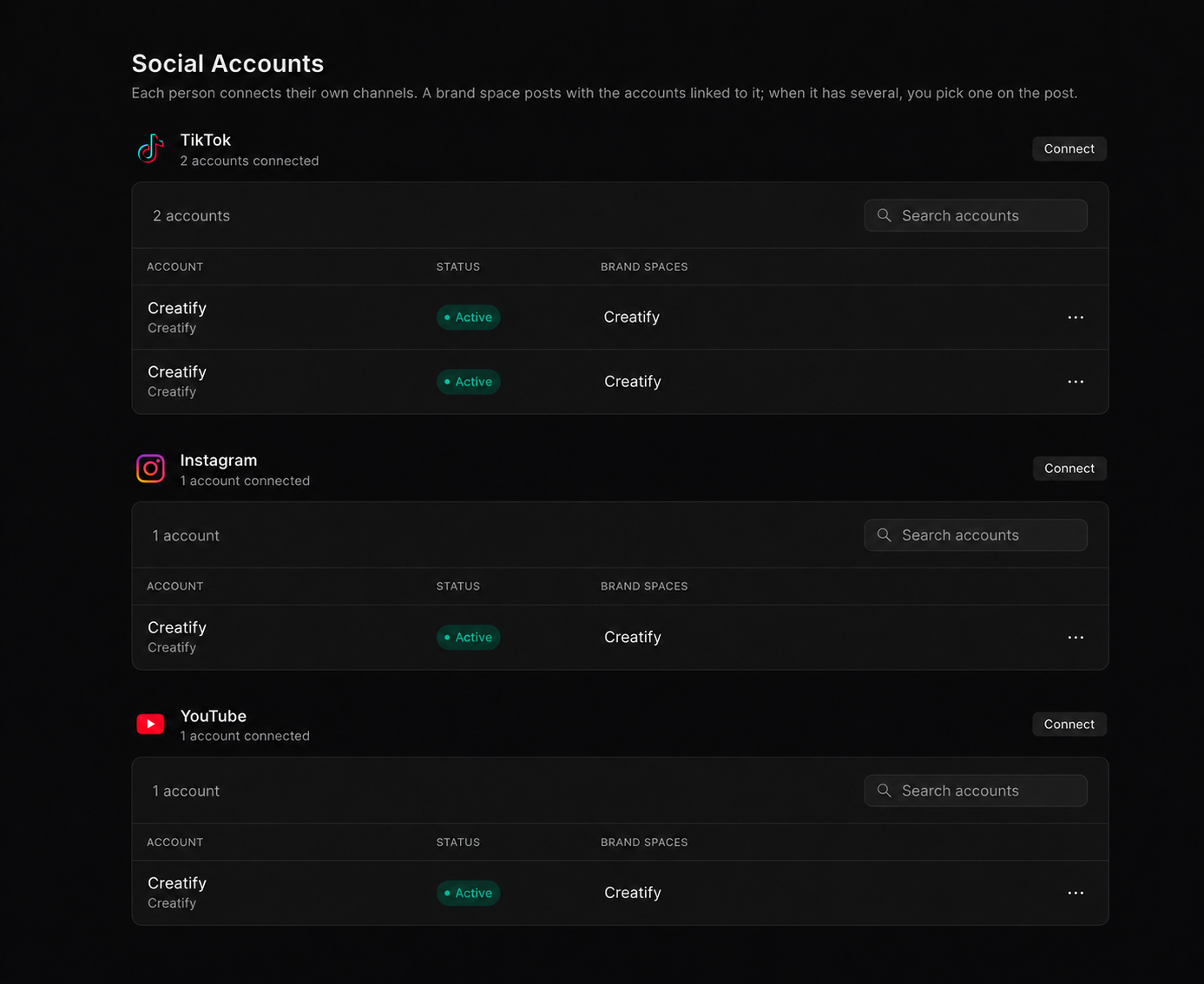
Managing more than one social channel for the same platform? You can now connect multiple TikTok, Instagram, and YouTube accounts in one workspace.
🔗
Keep every account connected:
Add another account on the same platform without replacing the one you already use.🎯
Choose the right account for each post:
When a brand space has multiple connected accounts, select the right one when you create a social post.🔄
Reconnect without duplicates:
Connecting an account you already added refreshes it instead of creating another copy.Open Social Accounts to connect the channels your team needs.
Create or edit GIFs of 2 to 16 frames in Sunburst and Flare, in the aspect ratio you choose. Starting from a prompt, you can also export SVG. Find both under Output Format in advanced settings.
Need more control over a video without splitting it into short clips? Wan 3.0 Prime is now available in Model Playground.
🎬
Create up to 30 seconds:
Turn a prompt into a longer video with motion and synchronized audio.🖼️
Guide with references:
Use images, videos, and audio to steer the result while keeping your visual direction consistent.✨
Choose the faster tier:
Select Wan 3.0 Prime when you want a faster Wan 3.0 workflow for your next creative.Open Model Playground, choose Wan 3.0 Prime, and start creating.

Load More
→